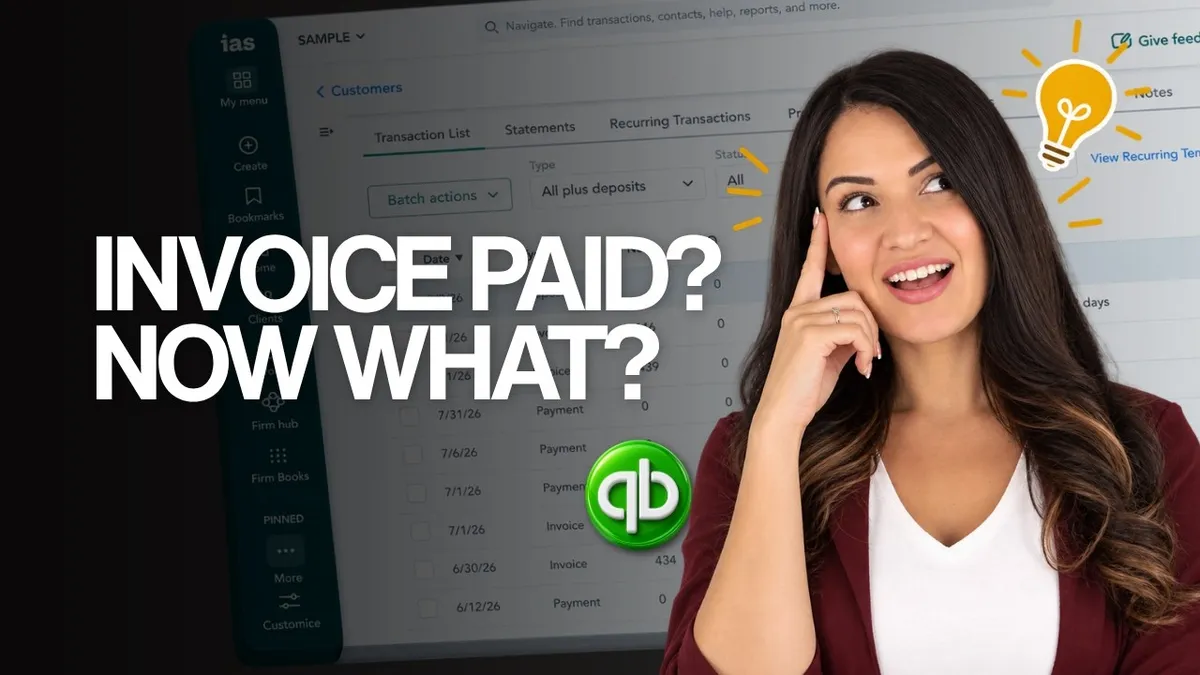
Record Invoice Payments in QuickBooks Online
Small Business Accounting, QuickBooks Online
How to Record an Invoice Payment in QuickBooks Online
Getting paid should feel exciting, not confusing. If you have ever stared at your QuickBooks Online invoices wondering how to correctly record a customer payment or match it to your bank, you are definitely not alone. This guide walks you through each step in plain language so your books stay clean, accurate, and ready for tax time.
Prefer to follow along on video? Watch the walkthrough on YouTube — How to Record an Invoice Payment in QuickBooks Online (QBO) 2026.
Why Recording Invoice Payments the Right Way Matters
When you record invoice payment in QuickBooks Online correctly, three important things happen:
The customer’s invoice shows as paid, so your Accounts Receivable is accurate.
Your income is recorded in the right period, which matters for taxes and reporting.
You can easily match invoice to bank deposit when the money hits your bank feed, avoiding duplicates and messy reconciliations.
💡 Pro Tip: Never mark an invoice paid by creating a new sales receipt or a manual bank deposit. Always start with Receive payment so QuickBooks knows which invoice you are clearing.
Step 1: Open the Invoice You Are Getting Paid For
Start by going to your list of QuickBooks Online invoices. In most versions, you can click Sales > Invoices (or Get paid & pay then Invoices). Find the open invoice your customer is paying and click it to open the details.
You should see the status as something like Open or Unpaid. From here, you will use QuickBooks’ built-in payment workflow instead of adjusting the invoice total or creating a new transaction from scratch.
Step 2: Click “Receive Payment” in QuickBooks Online
To receive payment QuickBooks Online style, look for the Receive payment button on the invoice screen. When you click it, QuickBooks creates a payment form that is automatically linked to that customer and invoice.
Confirm the Customer name is correct.
Set the Payment date to the day you actually received the money (not necessarily the deposit date).
Choose the correct Payment method (check, cash, bank transfer, card, etc.).
You will also see a list of open invoices for that customer. Make sure the correct invoice is checked and the Amount received matches the payment you got from the customer.
Step 3: Understand the “Undeposited Funds” Account
One of the most confusing parts of learning how to record invoice payment QuickBooks Online is the Undeposited Funds account. Think of Undeposited Funds as a virtual cash drawer. It is where QuickBooks holds individual customer payments until you group them into a bank deposit that matches what your bank shows.
If your bank shows one combined deposit for several customer checks or card payments, choose Undeposited Funds as the Deposit to account when you receive each payment.
If the customer payment hits the bank as its own separate deposit (for example, a single wire transfer), you can deposit it directly to that specific bank account instead of Undeposited Funds.
📌 Key Takeaway: Use Undeposited Funds when you will be combining multiple customer payments into one bank deposit. This makes it much easier to match invoice to bank deposit later in your bank feed.
Step 4: Save the Payment and Check the Invoice Status
Once the payment details look right, click Save and close (or Save and new if you have more payments to enter). QuickBooks will mark the invoice as Paid and link the payment to that invoice behind the scenes.
If you go back to your list of QuickBooks Online invoices, you should now see the status updated. This is your confirmation that Accounts Receivable is in good shape and that customer no longer shows as owing you money for that invoice.
Step 5: Match the Payment to Your Bank Deposit
After you have recorded payments, your next job is to make sure they line up with what actually hits your bank. This is where the match invoice to bank deposit step comes in. When the deposit appears in your bank feed, you will either match an existing deposit or create a new one from Undeposited Funds that mirrors the amounts on your bank statement.
For a deeper look at this part of the process, check out: How to Record a Bank Deposit in QuickBooks Online on YouTube. It pairs perfectly with this payment workflow and helps you avoid duplicate income.
Bonus: Make Getting Paid Easier with Recurring Invoices
If you bill the same customers every month, setting up recurring QuickBooks Online invoices can save you a ton of time and help smooth out your cash flow. Instead of recreating the same invoice over and over, QuickBooks can automatically generate and send it for you on a schedule you choose.
To learn why this matters so much for small businesses, watch: Why Recurring Invoices Are Important for Your Business . When recurring invoices are set up well, recording payments becomes a simple weekly routine instead of a stressful monthly scramble.
When to Ask for Help with QuickBooks Online Invoices
If your books already feel tangled, it is completely okay to ask for help. Common signs you might want support include:
Customer balances that clearly are wrong or negative when they should not be.
Income that looks doubled because payments and deposits were both entered as sales.
Bank reconciliations that never seem to balance, no matter what you try.
Outsourced Operations specializes in monthly accounting and QuickBooks Online for small businesses just like yours. We live in this workflow every day, so you do not have to.
Need Extra Help?
Free Strategy Call: Book a friendly, no‑pressure free strategy call with our team, and we’ll walk through your current setup.
1:1 Training: Get expert guidance on how to best use QuickBooks Online for your needs. Book your 60 minute call now.
Quickbooks Online Course: This course provides clear walkthroughs and time-saving tips, so you'll finally feel confident navigating QuickBooks Online without the overwhelm. QuickBooks Online course
Check Us Out On YouTube